微信小程序相关
微信小程序简介
文档相关
开发者工具
下载地址:https://developers.weixin.qq.com/miniprogram/dev/devtools/download.html
使用
必选项处理
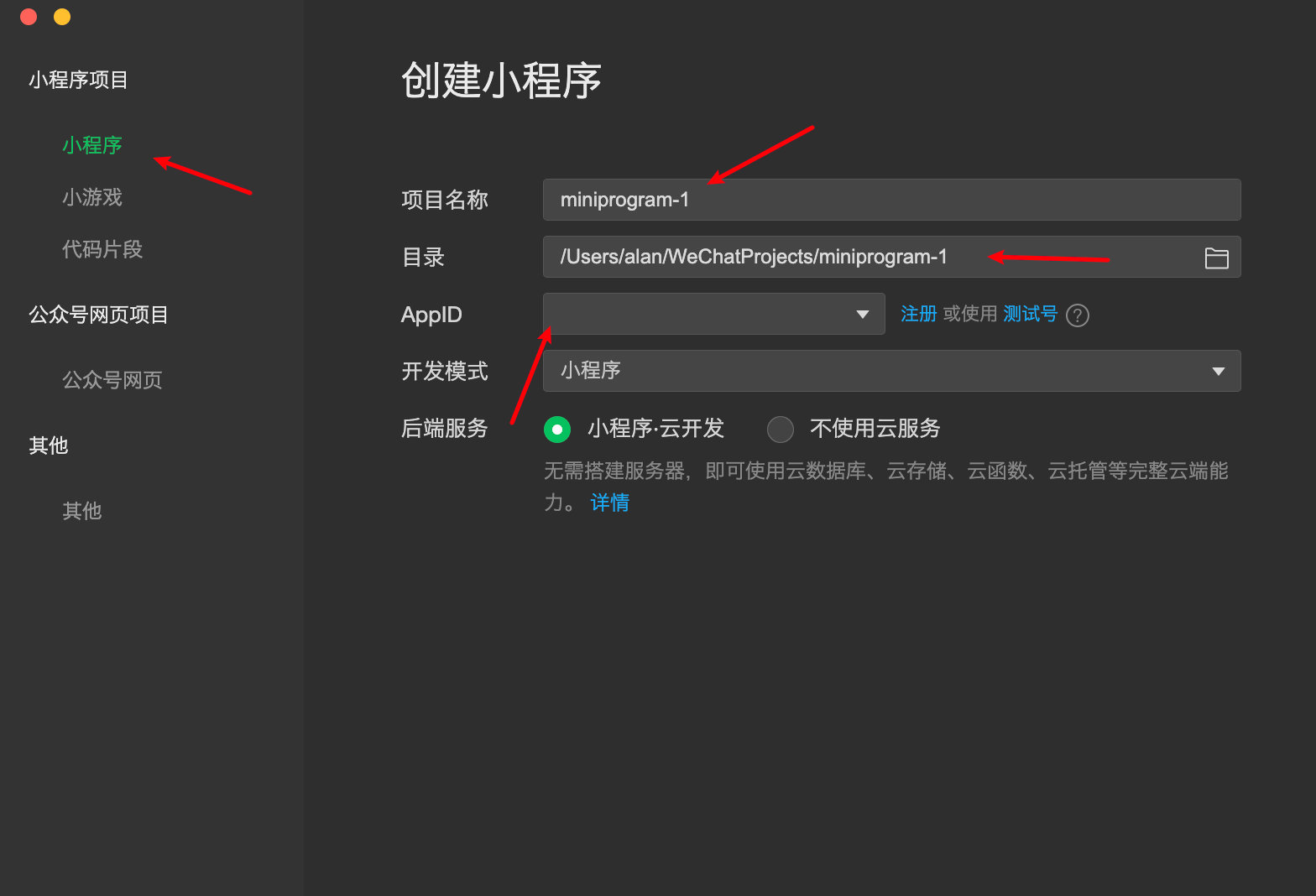
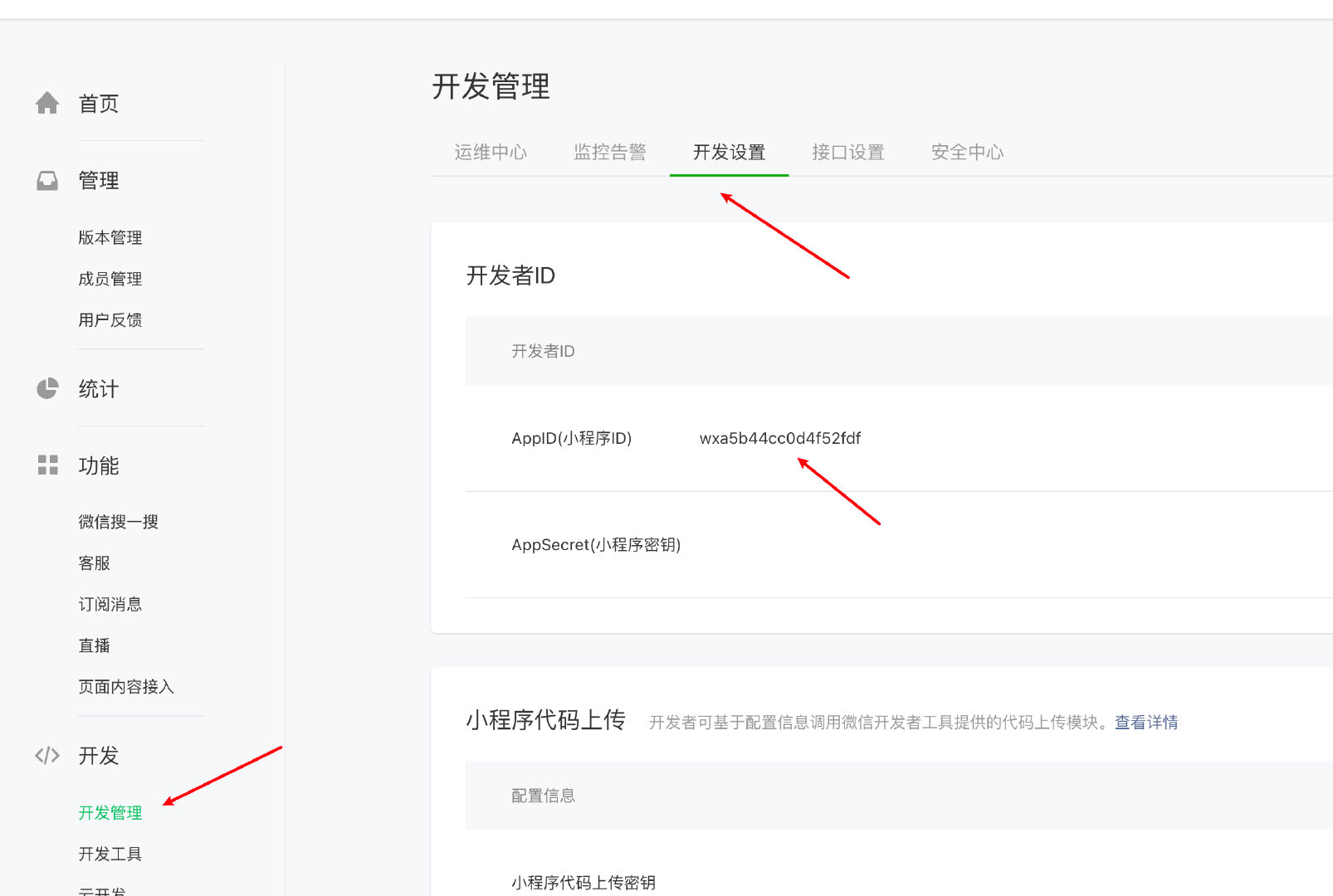
appID获取
微信公众平台进行appID获取
小程序代码构成
.json后缀的JSON配置文件.wxml后缀的WXML模板文件.wxss后缀的WXSS样式文件.js后缀的JS脚本逻辑文件
小程序基本结构
1 | <view class="container"> |
小程序基本操作
配置信息
全局配置 -> https://developers.weixin.qq.com/miniprogram/dev/reference/configuration/app.html
1
2
3
4
5
6
7
8
9
10
11
12
13
14
15
16
17
18
19
20
21
22
23{
"pages": [
"pages/index/index",
"pages/logs/index"
],
"window": {
"navigationBarTitleText": "Demo"
},
"tabBar": {
"list": [{
"pagePath": "pages/index/index",
"text": "首页"
}, {
"pagePath": "pages/logs/index",
"text": "日志"
}]
},
"networkTimeout": {
"request": 10000,
"downloadFile": 10000
},
"debug": true
}页面配置
1
2
3
4
5
6
7{
"navigationBarBackgroundColor": "#ffffff",
"navigationBarTextStyle": "black",
"navigationBarTitleText": "微信接口功能演示",
"backgroundColor": "#eeeeee",
"backgroundTextStyle": "light"
}
全局生命周期函数
1
2
3
4
5
6
7
8
9
10
11
12
13
14
15
16
17
18
19
20
21
22
23
24
25
26
27/**
* 当小程序初始化完成时,会触发 onLaunch(全局只触发一次)
*/
onLaunch: function () {
},
/**
* 当小程序启动,或从后台进入前台显示,会触发 onShow
*/
onShow: function (options) {
},
/**
* 当小程序从前台进入后台,会触发 onHide
*/
onHide: function () {
},
/**
* 当小程序发生脚本错误,或者 api 调用失败时,会触发 onError 并带上错误信息
*/
onError: function (msg) {
}- 页面生命周期函数 -> https://developers.weixin.qq.com/miniprogram/dev/framework/app-service/page-life-cycle.html
1
2
3
4
5
6
7
8
9
10
11
12
13
14
15
16
17
18
19
20
21
22
23
24
25
26
27
28
29
30onLoad: function(options) {
// 页面创建时执行
},
onShow: function() {
// 页面出现在前台时执行
},
onReady: function() {
// 页面首次渲染完毕时执行
},
onHide: function() {
// 页面从前台变为后台时执行
},
onUnload: function() {
// 页面销毁时执行
},
onPullDownRefresh: function() {
// 触发下拉刷新时执行
},
onReachBottom: function() {
// 页面触底时执行
},
onShareAppMessage: function () {
// 页面被用户分享时执行
},
onPageScroll: function() {
// 页面滚动时执行
},
onResize: function() {
// 页面尺寸变化时执行
}组件生命周期->https://developers.weixin.qq.com/miniprogram/dev/framework/custom-component/lifetimes.html
1
2
3
4
5
6
7
8
9
10
11
12
13
Component({
lifetimes:{
created() {
console.log('created,组件实例刚刚被创建好时, created 生命周期被触发')
},
attached() {
console.log('组件实力进入页面节点树时候进行执行');
},
detached() {
console.log('在组件实例被从页面节点树移除时执行');
}
}
})界面跳转
新界面打开=>https://developers.weixin.qq.com/miniprogram/dev/framework/app-service/route.html
1
2
调用 API wx.navigateTo
使用组件 <navigator open-type="navigateTo"/>页面重定向
1
2
调用 API wx.redirectTo
使用组件 <navigator open-type="redirectTo"/>页面返回
1
2
3
调用 API wx.navigateBack
使用组件<navigator open-type="navigateBack">
用户按左上角返回按钮Tab切换
1
2
3
调用 API wx.switchTab
使用组件 <navigator open-type="switchTab"/>
用户切换 Tab重启动
1
2
调用 API wx.reLaunch
使用组件 <navigator open-type="reLaunch"/>
数据绑定
1
<view>{{message}}</view>
1
2
3
4
5
Page({
data:{
message:"hello world"
}
})条件渲染
1
<view wx:if="{{isShow}}">条件判断显示</view>
1
2
3
4
5
Page({
data:{
isShow:false
}
})列表渲染
1
2
3<view wx:for="{{list}}" wx:for-index="idx" wx:for-item="itemName">
{{idx}}: {{itemName.name}}
</view>1
2
3
4
5
6
7
8Page({
data: {
list:[
{name:'a'},
{name:'b'}
]
}
})